Lesson Objective
By the end of this lesson, you should be able to:
- Understand JavaScript - Develop an understanding of the use and purpose of JavaScript.
- Create HTML Forms - Understand how to create forms and input data using HTML.
- Manipulate HTML Elements - Use JavaScript to change the content of HTML elements.
- Write to Documents - Use JavaScript to write content to web documents.
- Create Interactive Elements - Create and use JavaScript alert boxes for user interaction.
Student Login
Access exclusive lesson resources, notes, and materials.
What is JavaScript Used For?
JavaScript is the third essential language all web developers must know (alongside HTML and CSS).
- Creating interactive websites
- Manipulating HTML elements dynamically
- Validating HTML web forms before data transmission
- Building modern web applications (e.g. Gmail, Google Docs)
- Building mobile applications
- Running server-side applications (with Node.js)

JavaScript
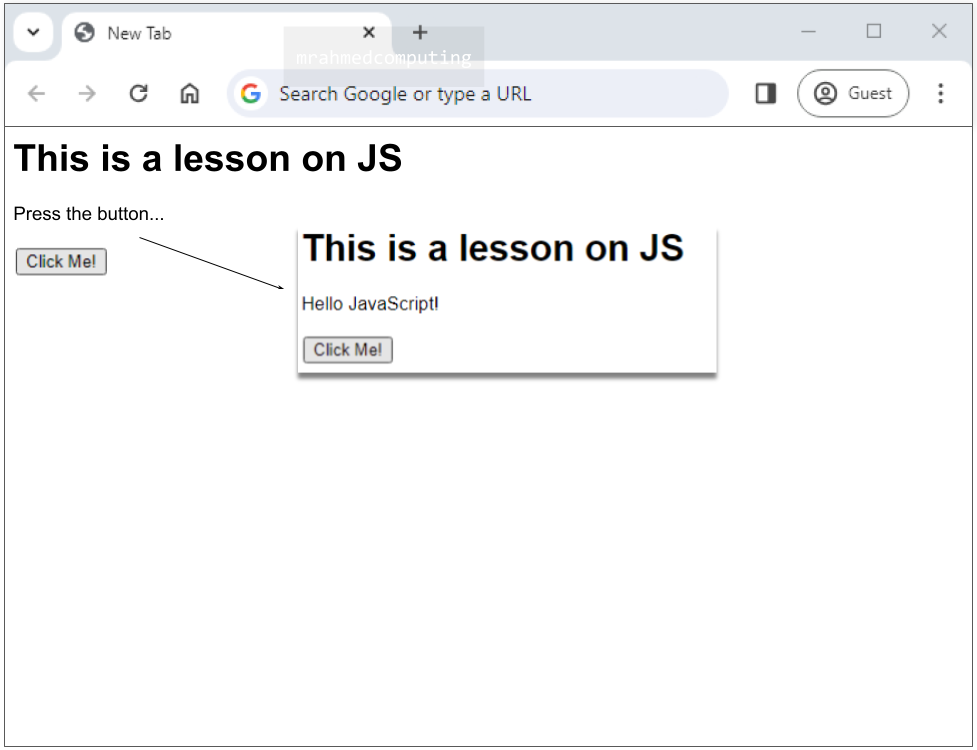
JavaScript code is inserted between <script> and </script> tags in HTML documents.
One of many JavaScript HTML methods is getElementById(), which selects specific elements by their unique ID.
JavaScript + HTML Example:
<!DOCTYPE html>
<html>
<head>
    <title>Page Title</title>
</head>
<body>
    <h1>This is a lesson on JS</h1>
    <p id="example">Press the button...</p>

    <button type="button" onclick='document.getElementById("example").
    innerHTML = "Hello JavaScript!"'>Click Me!</button>
</body>
</html>
JavaScript Output Methods
JavaScript can display data in different ways depending on the context and requirements.
1. innerHTML
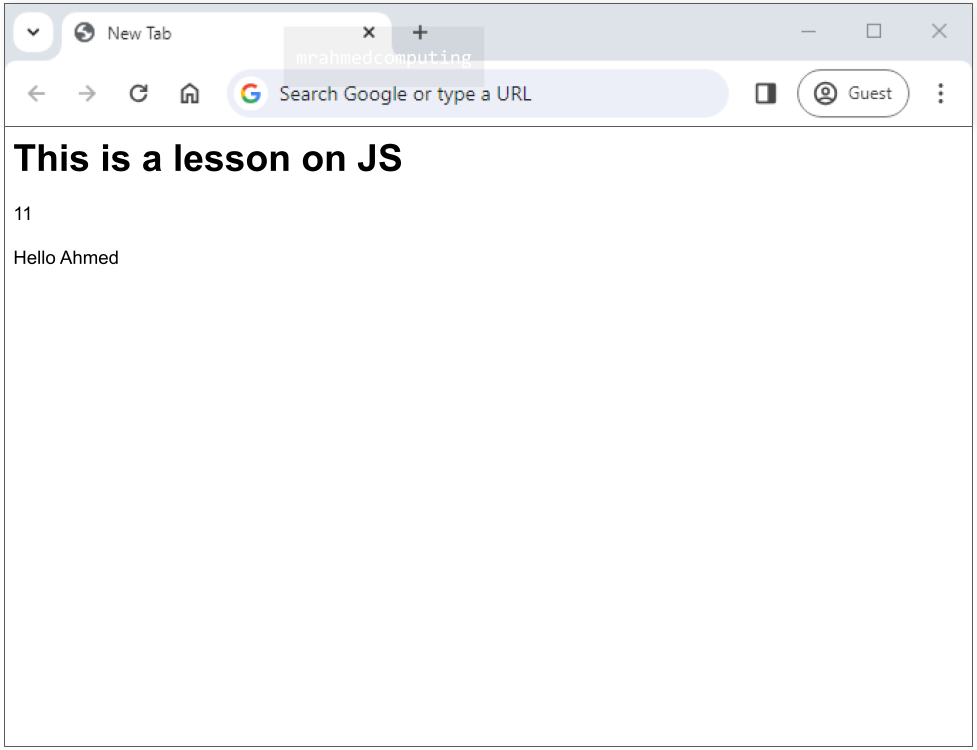
Use innerHTML to change content within specific HTML elements. This allows JavaScript to update what's displayed without reloading the entire page.
document.getElementById()pinpoints elements by their unique IDsinnerHTMLreplaces content within those elements- The code relies on elements with specific IDs existing in the HTML
Example:
<!DOCTYPE html>
<html>
<body>
    <h1>This is a lesson on JS</h1>
    <p id="example"></p>
    <p id="example1"></p>

    <script>
        document.getElementById("example").innerHTML = 5 + 6;
        document.getElementById("example1").innerHTML = "Hello Ahmed.";
    </script>
</body>
</html>
2. document.write()
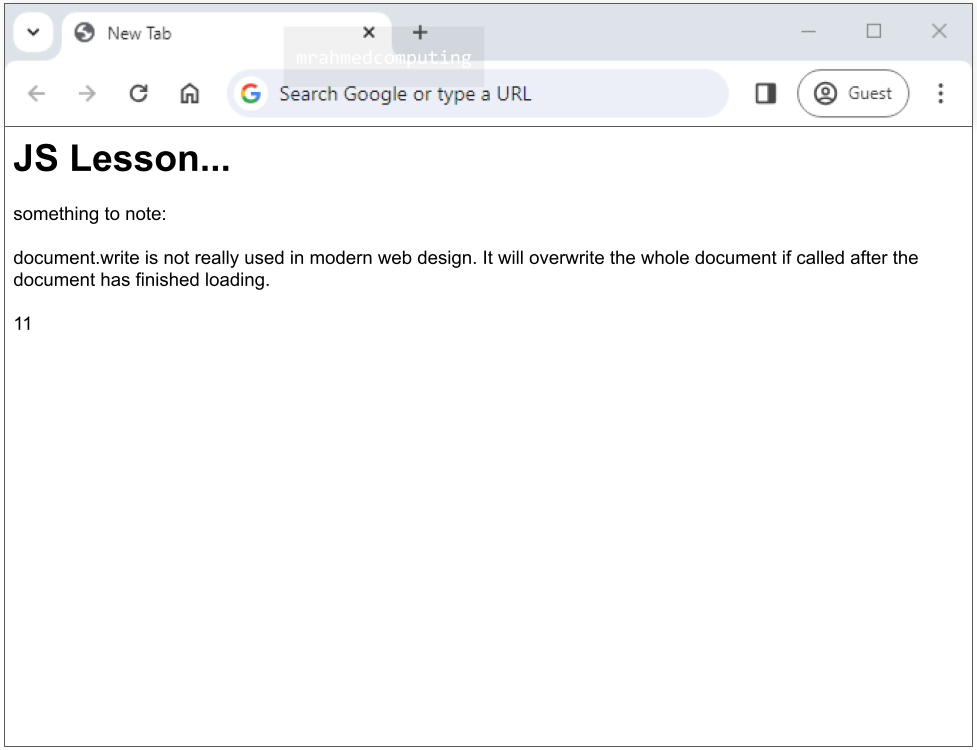
Use document.write() to add new content directly to the HTML document. Note: This method is not recommended in modern web development.
- Dynamically writes content to the HTML document (not external files)
- Will overwrite the entire document if called after the page has finished loading
- Generally discouraged due to performance and maintainability concerns
- Not used in modern web development practices
Example:
<!DOCTYPE html>
<html>
<body>
    <h2>JS Lesson...</h2>
    <p>Something to note:</p>
    <p>document.write is not really used in modern web design. </p>

    <script>
        document.write(5 + 6);
    </script>
</body>
</html>
Problematic Example (Overwrites Content):
<!DOCTYPE html>
<html>
<body>
    <h2>JS Lesson...</h2>
    <p>Something to note:</p>

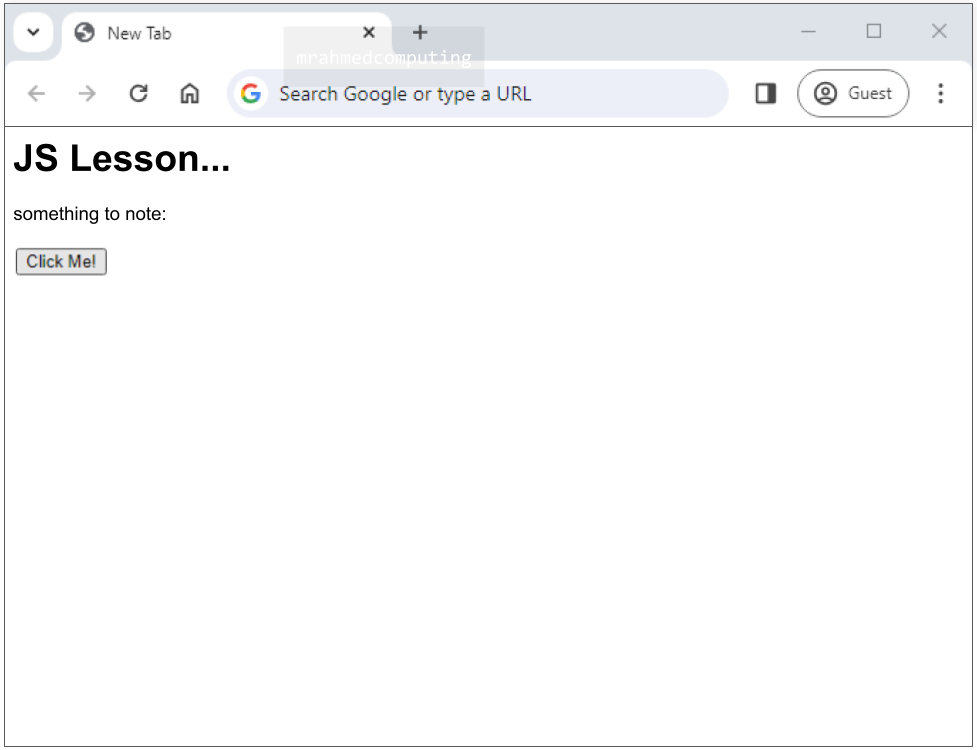
    <button type="button" onclick="document.write(5 + 6)">
        Click Me!
    </button>
</body>
</html>
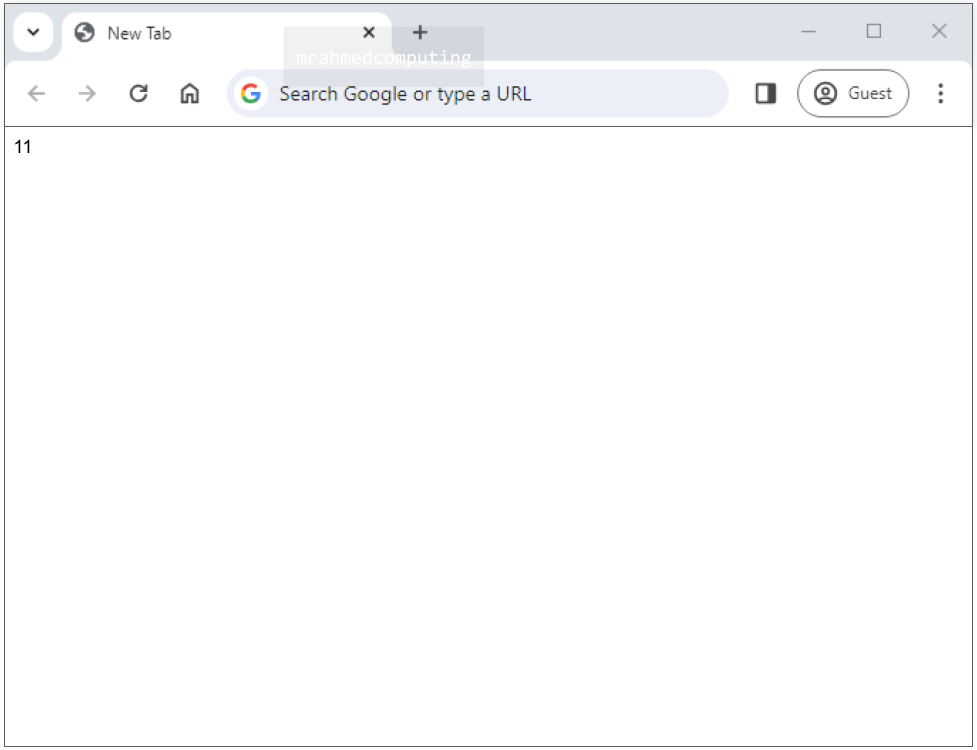
Warning: Clicking the button in this example will erase all content in the document.
BEFORE BUTTON CLICK:
AFTER BUTTON CLICK:
3. window.alert()
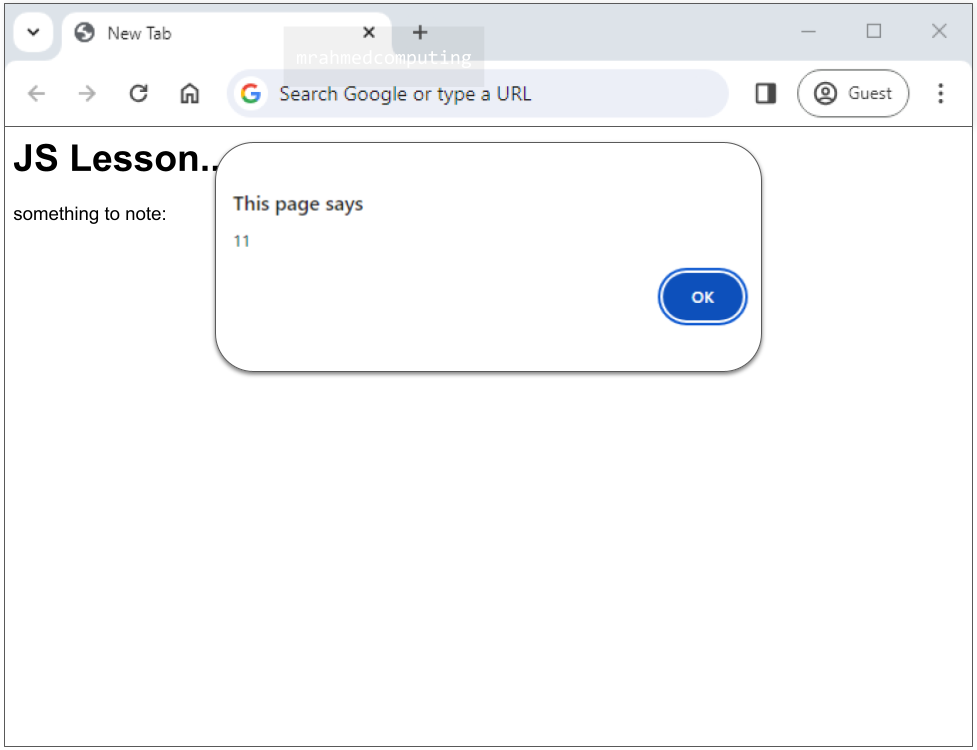
Use window.alert() for notifications or user confirmations through a pop-up window.
Example:
<!DOCTYPE html>
<html>
<body>
    <h2>JS Lesson...</h2>
    <p>Something to note:</p>

    <script>
        window.alert(5 + 6);
    </script>
</body>
</html>
4. window.print()
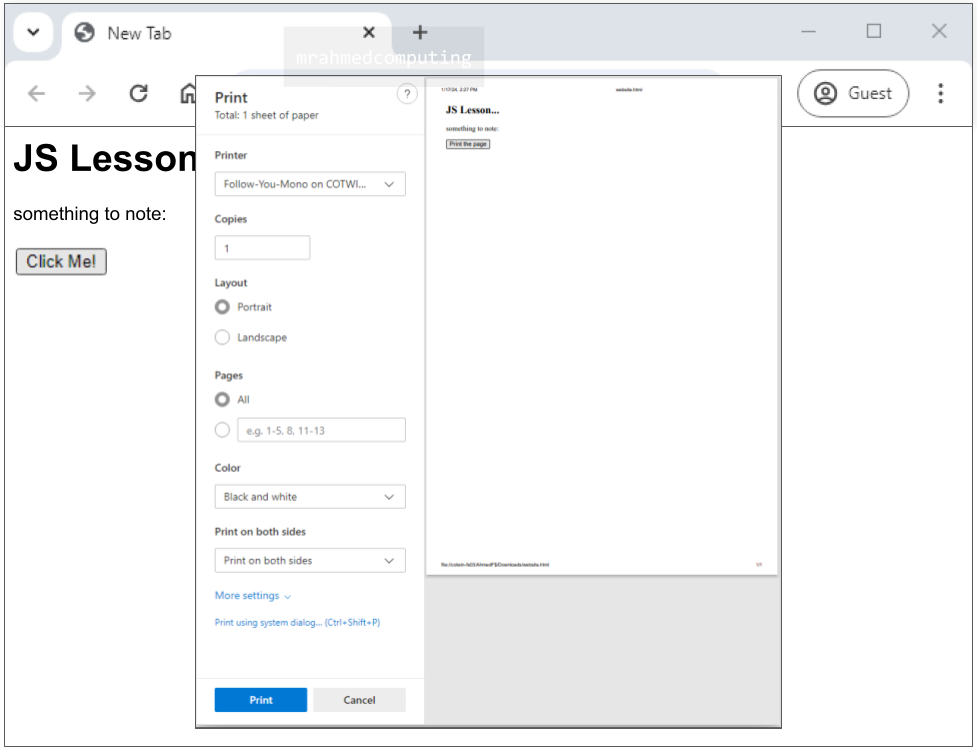
JavaScript does not have built-in print objects or methods, and cannot directly access output devices. The exception is window.print(), which prints the content of the current browser window.
Example:
<!DOCTYPE html>
<html>
<body>
    <h2>JS Lesson...</h2>
    <p>Something to note:</p>

    <button onclick="window.print()">Print this page</button>
</body>
</html>
5. console.log()
Use console.log() for developer debugging and logging messages in the browser console (not visible to regular users).
This is an essential tool for testing and debugging JavaScript code during development.
JavaScript Output Methods Comparison
| Method | Purpose | When to Use | Modern Usage |
|---|---|---|---|
innerHTML |
Update specific HTML elements | Dynamic content updates | Common and recommended |
document.write() |
Write directly to document | Simple testing only | Not recommended |
window.alert() |
Pop-up notifications | Important user messages | Use sparingly |
window.print() |
Print current page | Print functionality | Limited but useful |
console.log() |
Developer debugging | Testing and debugging | Essential for development |
Advertisement.
JavaScript Variables
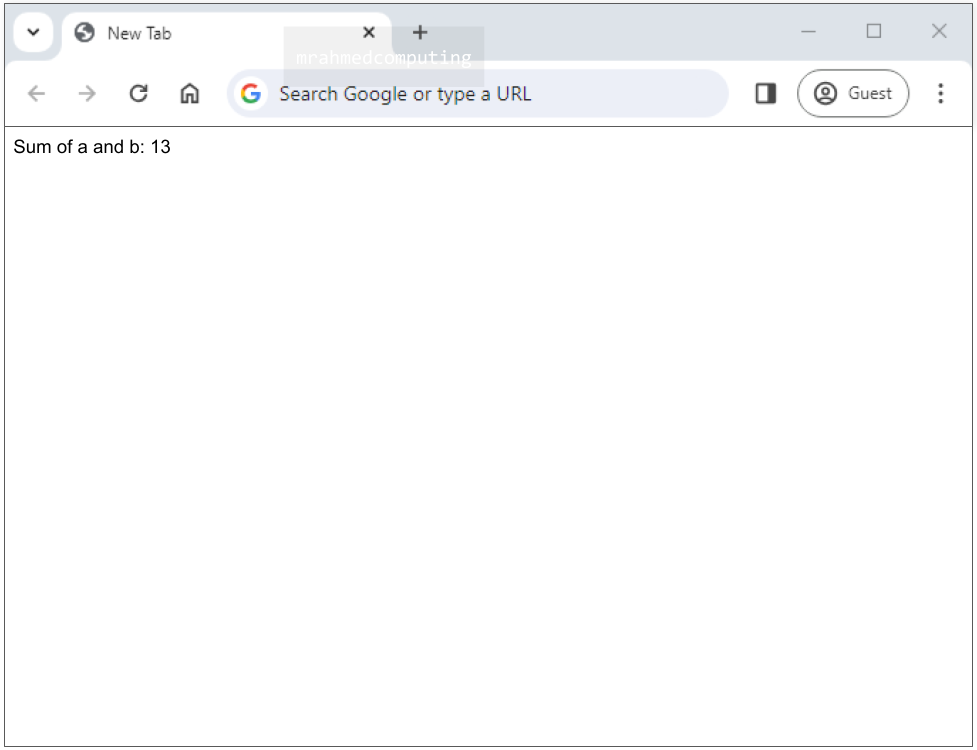
In programming, variables store data values. JavaScript uses var, let, and const to declare variables, with an equal sign (=) to assign values.
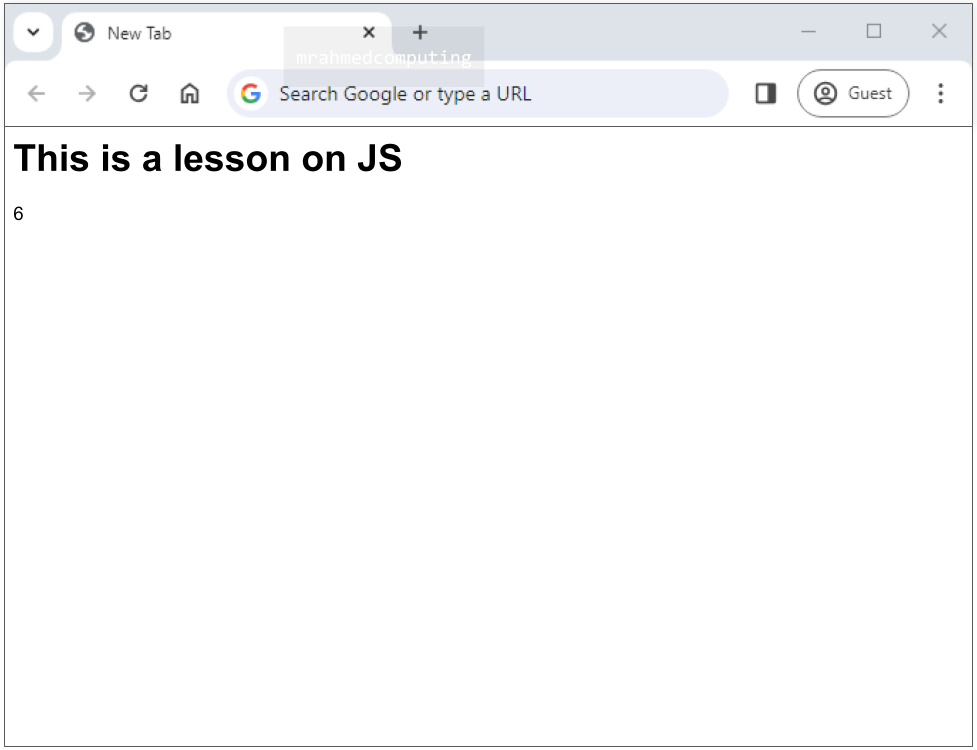
Variable Declaration Example 1:
<!DOCTYPE html>
<html>
<head>
    <title>Page Title</title>
</head>
<body>
    <h1>This is a lesson on JS</h1>
    <p id="example"></p>

    <script>
        let x;
        x = 6;
        document.getElementById("example").innerHTML = x;
    </script>
</body>
</html>
Variable Declaration Example 2:
<!DOCTYPE html>
<html>
<body>
    <p id="example"></p>

    <script>
        const a = 7;
        let b = 6;
        let c = a + b;
        document.getElementById("example").innerHTML = "Sum of a and b: " + c;
    </script>
</body>
</html>
When to Use var, let, or const?
- Always declare variables before using them
- Always use const if the value should not be changed
- Always use const if the type should not be changed (Arrays and Objects)
- Only use let if you can't use const
- Only use var if you MUST support old browsers
- Modern JavaScript development prefers
constandletovervar
JavaScript Functions
A JavaScript function is a block of code designed to perform a particular task. The code inside executes when "something" invokes (calls) the function.
Function Invocation Methods:
- When an event occurs (e.g. a user clicks a button)
- When invoked from other JavaScript code
- Automatically (self-invoked functions)
Function Example:
<!DOCTYPE html>
<html>
<body>
    <h1>JS Functions</h1>
    <p id="example"></p>

    <script>
        function myFunction(p1, p2) {
            return p1 * p2;
        }
        let result = myFunction(4, 5);
        document.getElementById("example").innerHTML = result;
    </script>
</body>
</html>
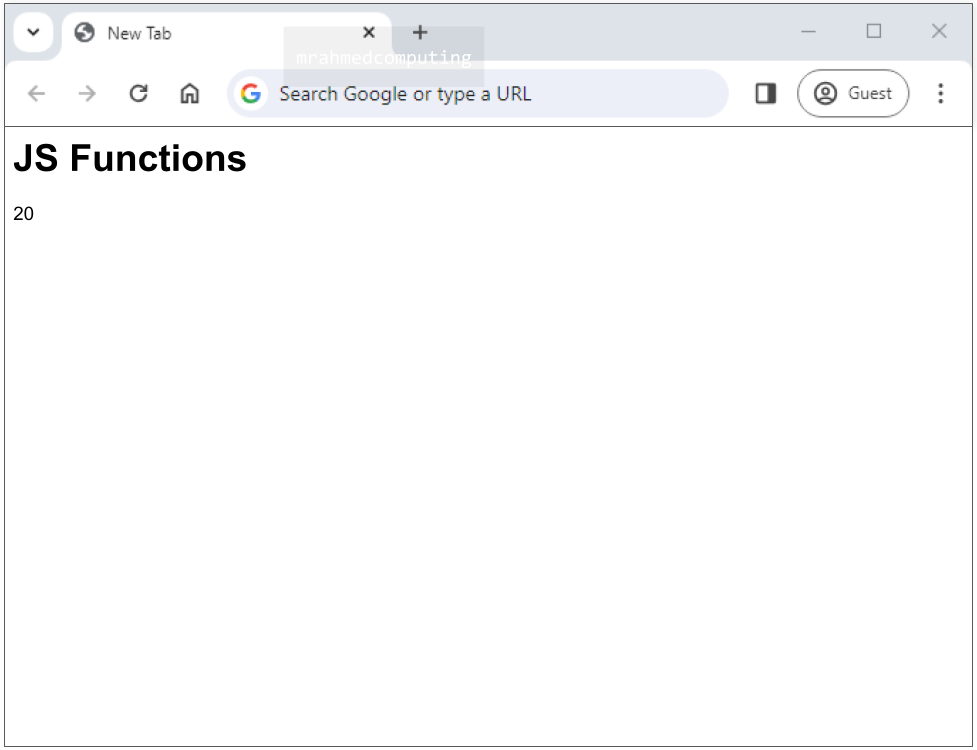
This example creates a function called myFunction that takes two parameters (p1 and p2), multiplies them, and returns the result. The function is then called with arguments 4 and 5.
HTML Forms
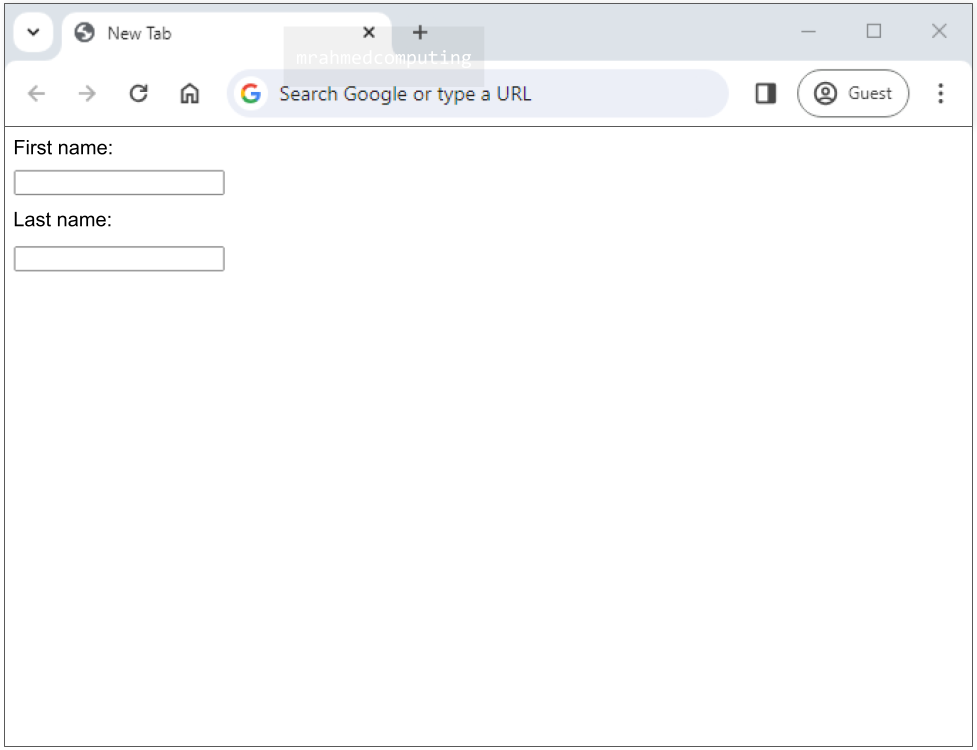
An HTML form collects user input, which is typically sent to a server for processing.
The <form> element creates an HTML form for user input. It's a container for different types of input elements.
Basic Form Example:
<!DOCTYPE html>
<html>
<body>
    <form>
        <label for="fname">First name:</label><br>
        <input type="text" id="fname" name="fname"> <br>
        <label for="lname">Last name:</label><br>
        <input type="text" id="lname" name="lname">
    </form>
</body>
</html>
Common Input Types:
<input type="text">- Single-line text input field<input type="radio">- Radio button for single selection<input type="checkbox">- Checkbox for multiple selections<input type="submit">- Submit button for form data<input type="button">- Generic clickable button
Form Submission with Button Example
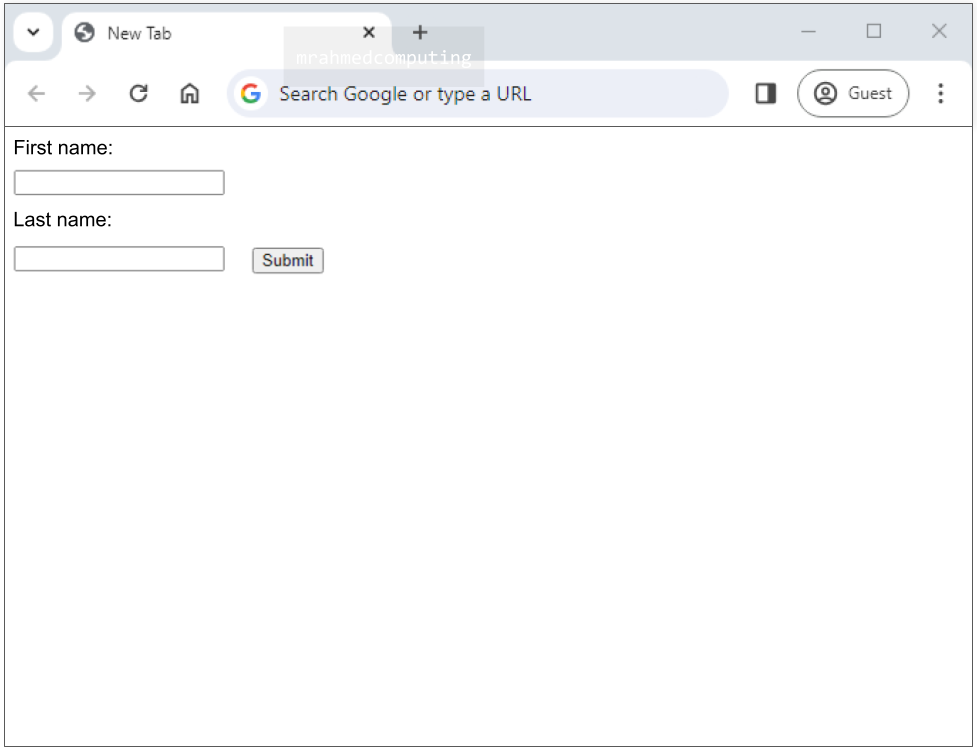
The <input type="submit"> creates a button for submitting form data to a form-handler (typically a server-side script).
The form-handler is specified in the form's action attribute (not shown in basic examples).
<!DOCTYPE html>
<html>
<body>
    <form>
        <label for="fname">First name:</label><br>
        <input type="text" id="fname" name="fname"> <br>
        <label for="lname">Last name:</label><br>
        <input type="text" id="lname" name="lname">
        <input type="submit" value="Submit">
    </form>
</body>
</html>
Advertisement.
Complete Form and JavaScript Example
This example demonstrates a complete integration of HTML forms with JavaScript for form handling and validation.
Complete Code Example:
<!DOCTYPE html>
<html>
<body>
    <form id="myForm">
        <label for="name">Name:</label>
        <input type="text" id="name" name="name"><br>
        <label for="email">Email:</label>
        <input type="email" id="email" name="email"><br>
        <button type="button" onclick="submitForm()">Submit</button>
    </form>

    <script>
        function submitForm() {
            const name = document.getElementById("name").value;
            const email = document.getElementById("email").value;
            alert("Name: " + name + "\nEmail: " + email);
            // You can replace this alert with other actions, like sending data to a server
        }
    </script>
</body>
</html>
How This Code Works:
- The HTML form collects user input for name and email
- The submit button has an
onclickattribute calling thesubmitForm()function - When clicked, JavaScript gets the values from the form fields using
getElementById() - The values are stored in variables (
nameandemail) - An alert box displays the collected information
- The alert can be replaced with server communication or other processing
Key Learning: This example shows how JavaScript can interact with HTML forms to capture, process, and respond to user input without reloading the page.
Lesson Summary
- JavaScript is essential for creating interactive, dynamic web experiences
- JavaScript code is inserted between
<script>tags in HTML documents - Output Methods:
innerHTML(updates elements),document.write()(not recommended),window.alert()(pop-ups),window.print()(printing),console.log()(debugging) - Variables: Store data using
const(unchanging),let(changeable), orvar(legacy) - Functions: Reusable code blocks that execute when called (by events, code, or automatically)
- HTML Forms: Collect user input using
<form>elements with various input types (text, radio, checkbox, submit) - Form Handling: JavaScript can capture form data using
getElementById()and process it without page reloads - Event Handling: Use attributes like
onclickto trigger JavaScript functions from HTML elements - Modern Practice: Prefer
innerHTMLoverdocument.write(), and useconst/letovervar - JavaScript transforms static HTML pages into dynamic, interactive web applications
- The combination of HTML (structure), CSS (presentation), and JavaScript (interactivity) forms the foundation of modern web development